Coloring your Tracks
Organizing your session effectively streamlines volume adjustments. I find that coloring my tracks is an essential part of the gain staging process, as it indirectly leads to better results by keeping my session organized.
Coloring Tracks
One way to do this quickly is to color all tracks that have similar functions together.
Changing Track Colors
To group tracks, hold down Shift and click on the first and last tracks in the range you want. This will select them all. If you need to deselect any tracks, hold Option and click on them. Once your tracks are selected, double-click the track header to open the color options and apply your desired color.
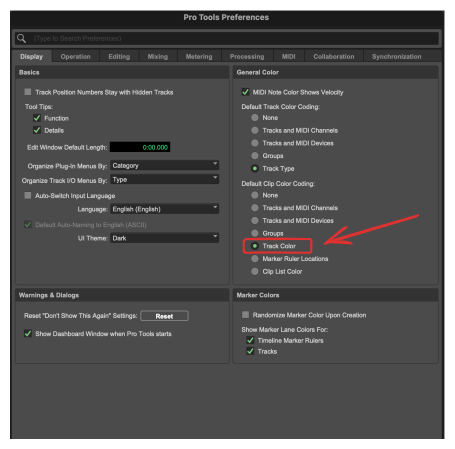
Match Clip Color to Track Color
In preferences, you can access a setting to ensure that track color matches clip color.