Adding Soundbase Sounds to your Project
Updated 7/20/2026
Make Sure Edit View is Open
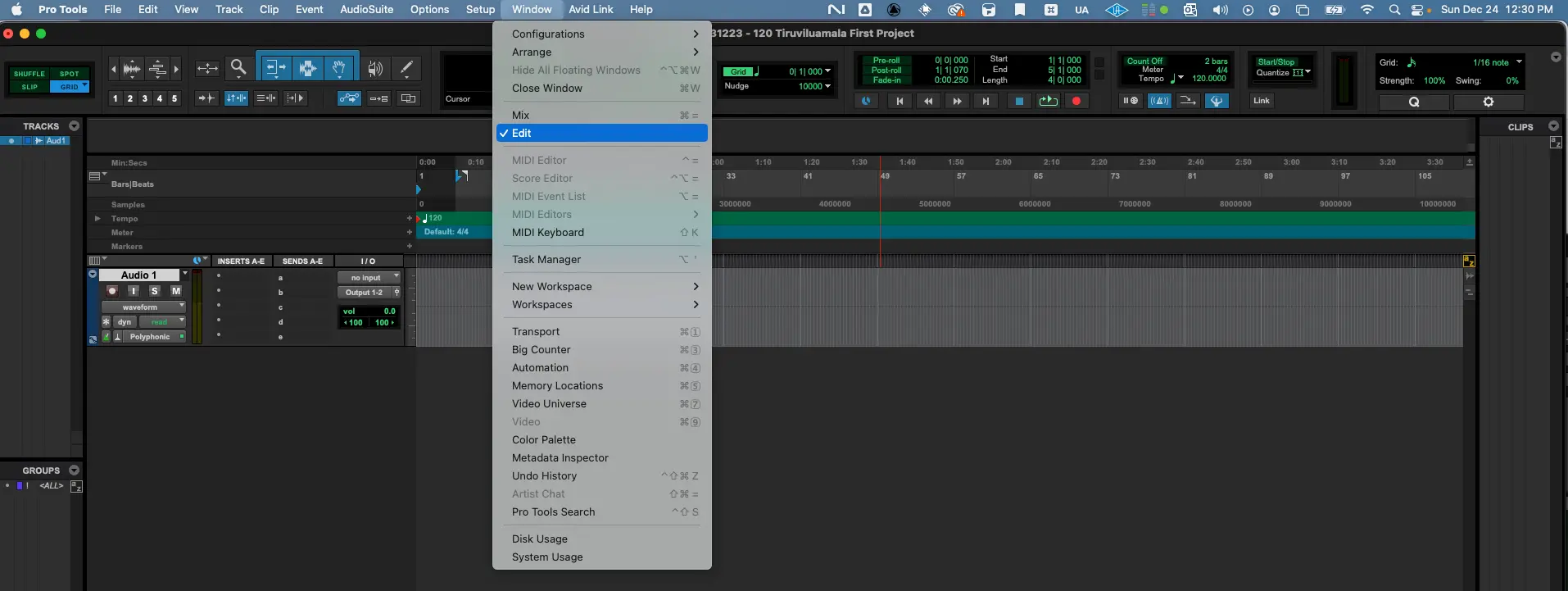
First, you'll want to make sure that Edit View is Open. You can do that by accessing the menu option Window > Edit. Once you do this, your interface should look somewhat like the one below.
Drag Sounds from the Soundbase onto Edit View
Now open up the Soundbase window once more while the Edit View is in the background. Click and drag the file onto Edit View within ProTools. See movie below.