Folder Tracks
Folder tracks are a great way
Basic Folder Tracks
Basic folder tracks group tracks together, but they don't allow you to adjust the volume of all of the tracks in the folder at once, nor does any audio actually route to the basic routing folder.
Routing Folder Tracks
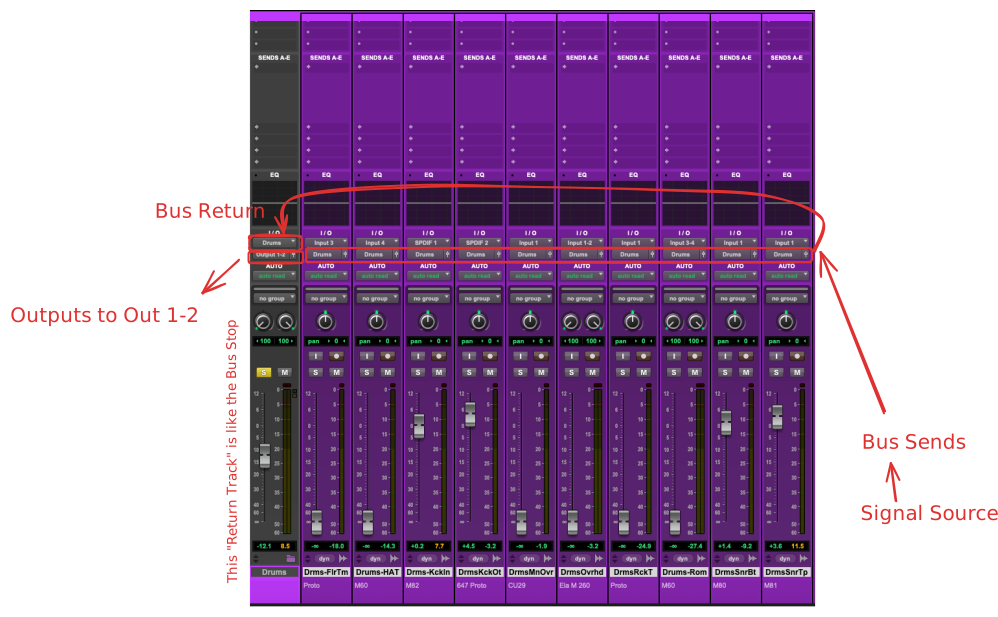
A routing folder track causes the audio for all tracks that are in that folder to be routed to the same destination, which is the folder itself.
The first step in creating a routing folder track is to select all of the tracks that you want to put into the routing folder. You can do this by holding shift or command to select the tracks that you want to put into the group, thereby selecting them and the track headers turn white.
You then need to right click one of the track headers, and you select the option "Move to New Folder".
When presented within this dialog, select a routing folder, and make sure that you select the checkbox at the bottom left of the dialog box to make sure that audio is being routed to this routing folder.
You can now hide all the tracks within the routing folder by pressing the little folder icon.
Relation to Busses