Volume Faders
Volume faders are convenient for many reasons. They are highly visible and allow us to adjust the volume of sections of audio without worrying about whether the change in dynamics is applied to a particular section. They set the level for all the clips on the track. Additionally, volume faders offer precise control, enable smooth transitions, and can be easily automated for more complex adjustments. They also provide a quick reference for the overall mix balance and help maintain consistent levels across different tracks.
Volume Fader in Mix View
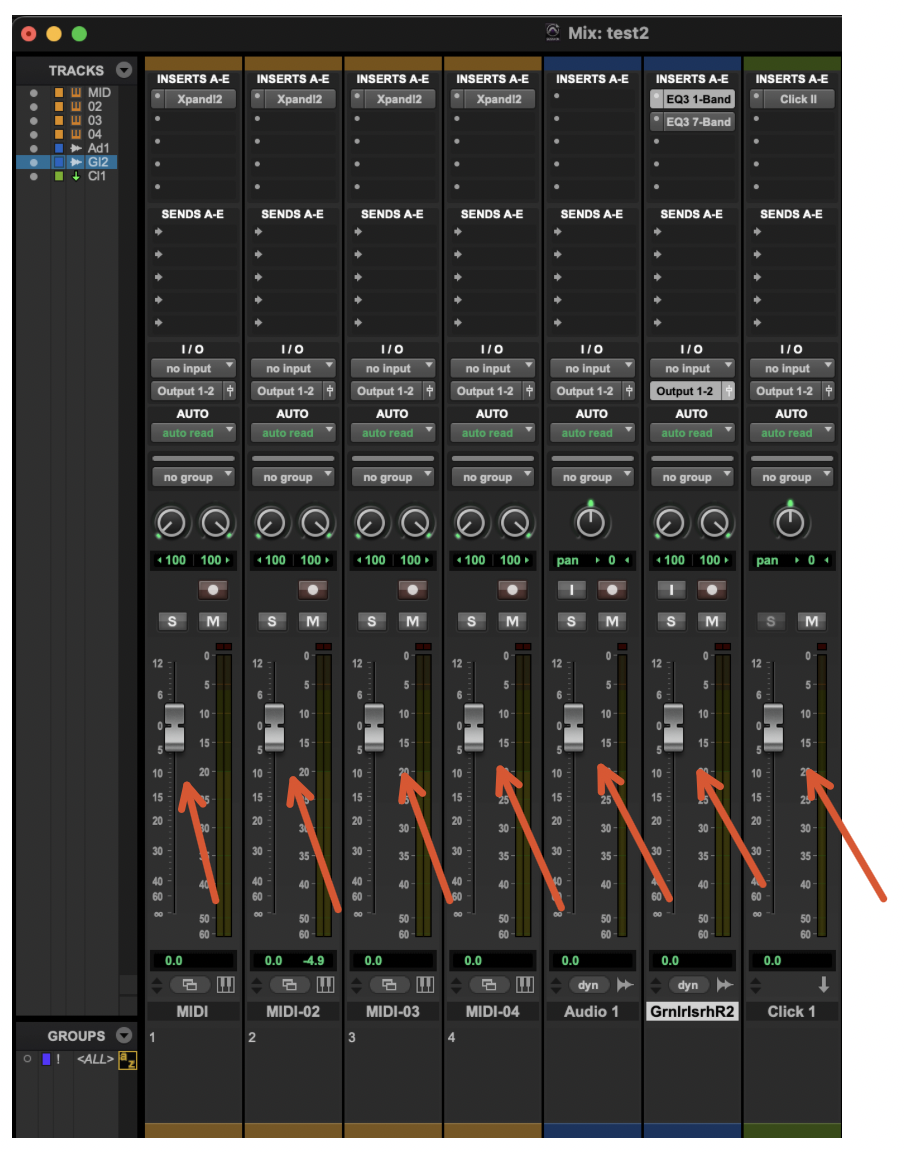
As its name suggests, ProTools' Mix View is most suitable for mixing audio. It is well designed for achieving the right proportions of different track elements and combining them into a cohesive mix. The display is dominated by faders, which you can click and drag up and down to change the levels of the tracks. To quickly switch between Mix and Edit View, you can use the keyboard shortcut Command + =.
Volume Fader in Edit View
You can still access the volume fader in edit view, but it appears in a different location.
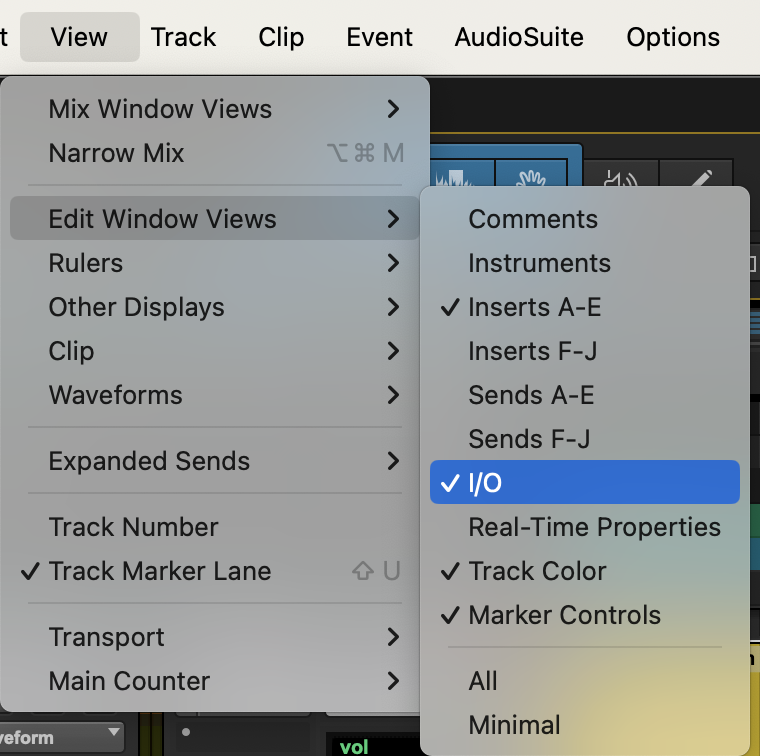
Ensure Edit Window Views display I/O
The volume fader is located within the Edit Window View known as I/O, so we need to first enable it in the View menu.
Access Floating Volume Fader
Click the small fader icon in the I/O section of the track where you want to see the volume fader. The floating fader will come into view and switch modes to display the properties for the track's volume fader. In the screenshot below, you can see how the floating fader's track selector matches the name of the track whose fader you clicked (the click track).