The Master Fader
Proper gain staging is critical in audio production. When managing multiple tracks, several key factors come into play.
Create Master Fader
One crucial method for ensuring proper level management is by establishing a Master Fader. This tool oversees the overall level of all signals, ensuring that the output from your computer isn't excessively high, which can result in digital distortion. To set up a Mast er Fader, simply go to Track > Master Fader.

The Master Fader Monitors the Output
The master fader typically oversees the combined output level for all of your tracks. Refer to the diagram below to understand how the outputs from each individual track are routed to a common output, which is under the surveillance of the Master Fader. This common output is labeled Output 1-2 in the diagram below, but it is more generally known as the Mix Bus

Avoid Clipping the Mix Bus!
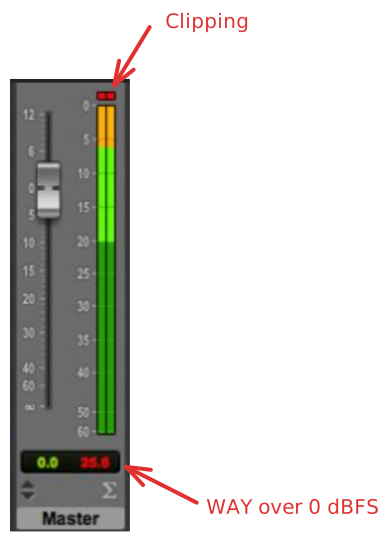
If you observe the Master Fader track displaying levels in the red, a red overload indicator will appear, signaling a problem. This indicates that the overall signal level being sent to the Mix Bus is too high. The most effective way to solve this is by lowering the levels of the individual tracks contributing to it, rather than adjusting the Master Fader itself. I have a strong preference for keeping the Master fader at unity for several reasons, which will be elaborated on later.
To clear overload indicators, simply click on them and they will disappear. To clear all overload indicators simultaneously, press and hold the option key while clicking on any one of the indicators; this will remove all overloads. It's advisable to regularly clear these indicators to prevent being deceived by false alarms.
Understanding the Meter
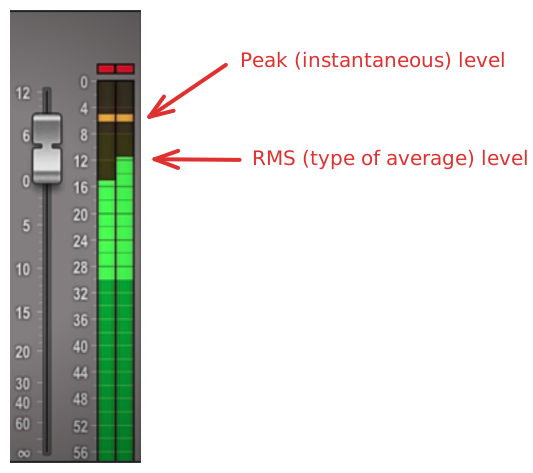
The ProTools meter presents two separate readings: peak and RMS. Contrary to initial assumptions, the peak denotes the highest level of the signal, usually surpassing the signal's denser parts shown on the display. This denser area represents the RMS level, indicative of the average power of the signal over time. The Peak level indicator at the bottom shows the highest peak level reached. Any level above 0 suggests that the signal is excessively loud. It's advisable to periodically reset these readings to ensure the data remains up-to-date and relevant.
Appropriate Levels for Mixing
When setting levels for mixing, it's typically recommended to keep the mix bus between -12 and -14 dBFS RMS, with a peak not exceeding -6 dBFS. This strategy provides the mastering engineer with ample headroom to fine-tune the tone and subsequently boost the volume.
Clearing Overages
To ensure you're seeing the most up-to-date volume information on your meter readouts, periodically clear the meters. This prevents false alarms from old data. To reset an individual meter, hover over the overage section or the readout itself, then left-click while holding the Option key. You can also reset all readouts by pressing Option + C.