Exploring the Soundbase
The Soundbase has Sounds
That sounds super obvious on the face of it, but the way the sounds are organized might not be immediately intuitive. There are a few different ways you can access sounds.
Filtering Sounds Using Tags
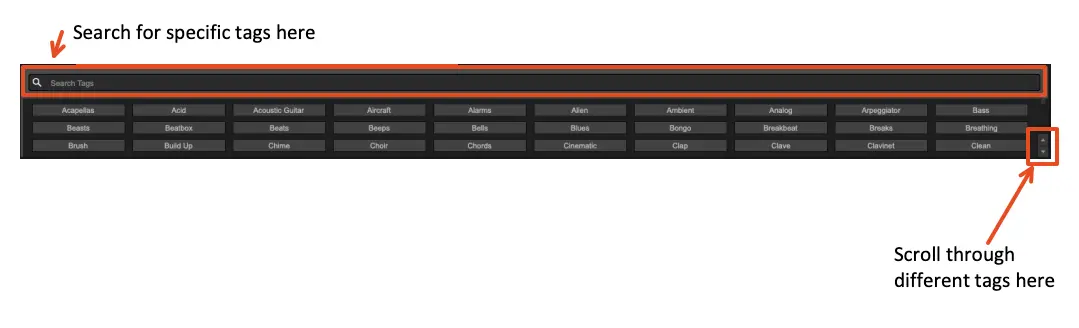
Within the Soundbase, you can view sounds by selecting/searching through specific tags. For instance, you might want to filter through only the "Cinematic" sounds. Use the top section of the interface to access the salient sounds.
Filtering Using the Advanced Filter
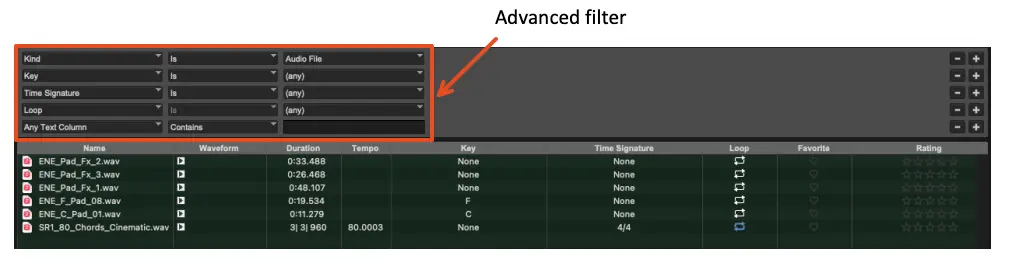
Continuing our example from before, filtering sounds with the "Cinematic" tag leads to a selection of sounds that we have available. We can further filter the sounds by selecting the "Advanced" filter.
Auditioning Sounds
You can audition sounds in the Soundbase by clicking the little play button in one of the Soundbase entries. See screenshot below.
