Assign Instrument to Instrument Track - X-Pand 2
Once we have created an instrument track, the next step is to assign an instrument to that track.
Make Inserts Visible
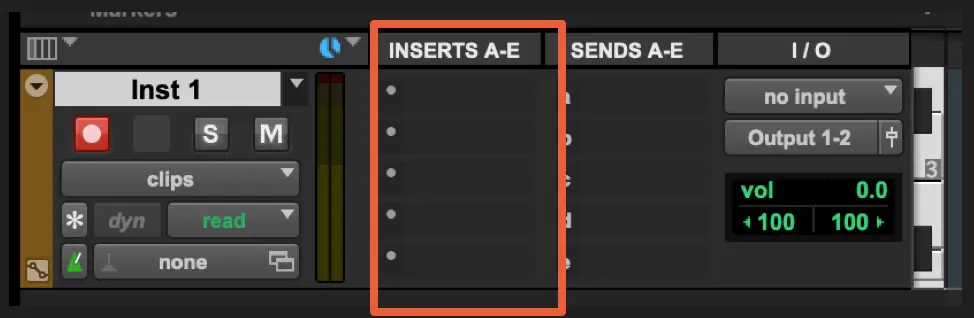
Make sure your Inserts are visible, as seen in the screenshot below.
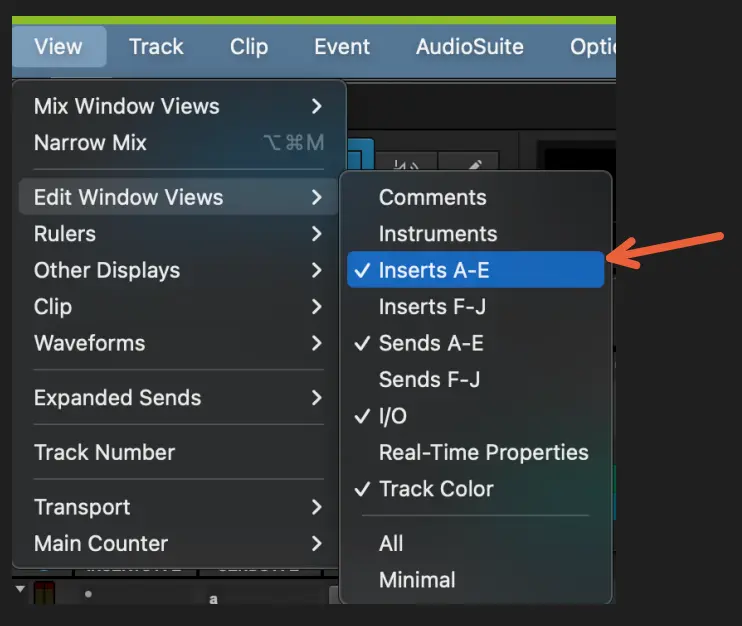
If your track inserts are invisible, navigate to View, Edit Window Views, Inserts A-E, as seen in the screenshot below:
Assign Virtual Instrument Onto Track
Once you've correctly configured your interface to make your inserts visible, you can now assign a virtual instrument onto your track. Click the dot corresponding to the first insert slot, and navigate to multi-channel plug-in > Instrument to see all available instruments. These virtual instruments take MIDI as input and produce low-level audio as output.
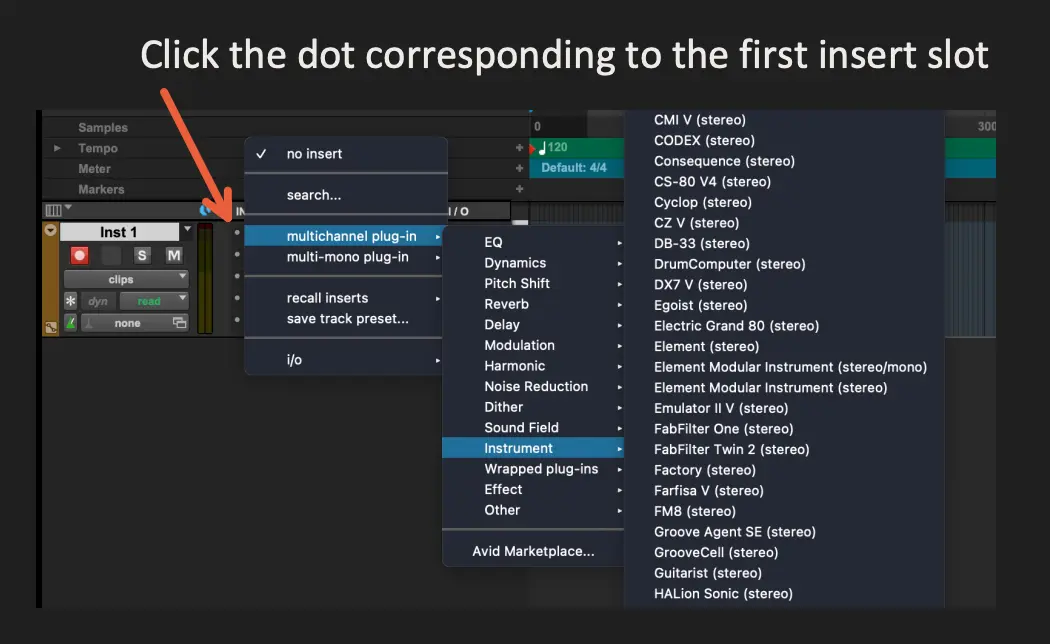
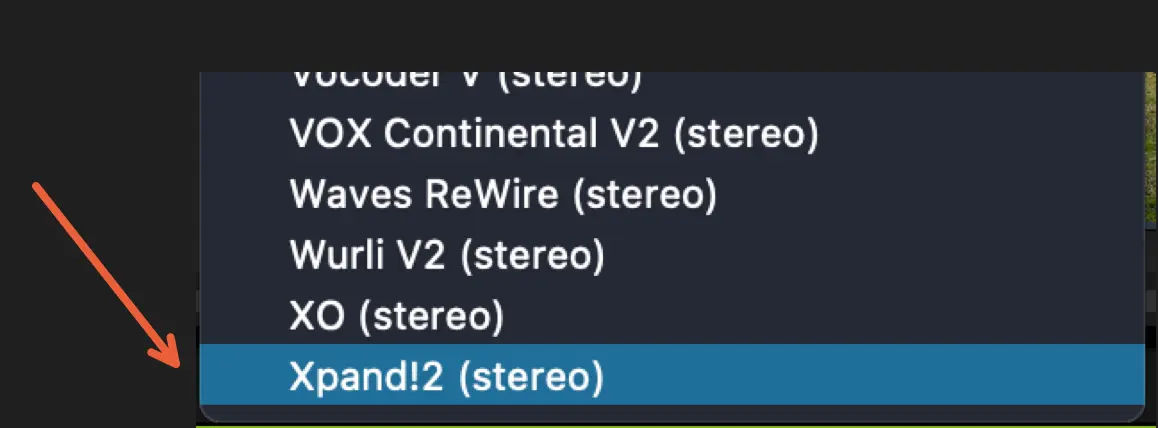
Select Xpand!2 in Pro Tools. If Xpand!2 isn’t appearing, ensure it is installed by selecting the “Included Apps and Plugins” options in the Pro Tools installer section of Avid Link.
Video Demonstration:
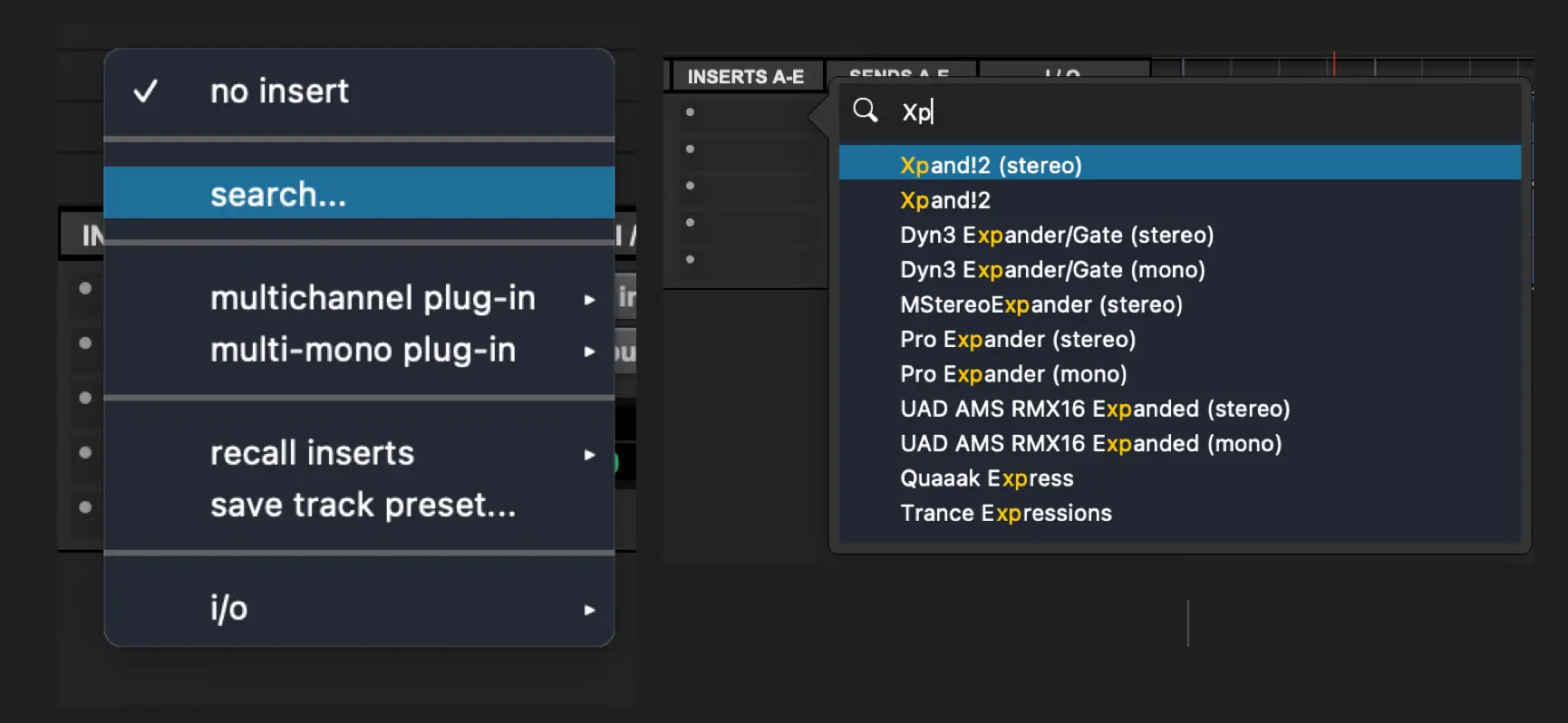
Shortcut for Plug-In Search
Instead of navigating through menu options, you can begin to search through a plug-in directory by simply beginning to type once you are prompted to choose an insert. The search bar will automatically come into view and you can filter to the plugin you are seeking by typing what you are searching for. It's like performing a search action without the need to physically click the "Search" button.