Logging into Midimaze
This course leans heavily on midimaze.com, a custom educational platform built by your professor. Your readings, interactive labs, and module quizzes live there. Canvas stays the place for course communications.
Signing in
You do not create an account and you do not pick a password. A properly configured account has already been created for you.
- Go to midimaze.com and click Sign In at the top right.
- Enter your Southwestern College email (
@swccd.edu). This must be the same address Canvas has for you, because that is how the site recognizes you. - Click Use magic link.
- Check your SWC email. You will get a message titled "Sign in to Midimaze" with a sign-in link. Click it and you are in.
That is the whole process. The magic link signs you in without a password, so there is no password to forget.
Note: the sign-in box opens on the email-and-password form by default. If this is your first time, ignore those fields and click Use magic link instead.
If you would rather use a password, click Forgot password? on the sign-in page. It emails you a reset link that lets you set one, and from then on you can sign in either way.
Login with your SWC email address!Your midimaze account is matched to your roster entry by email address. Sign in with a personal Gmail and the site will not know which class you are in, and your quiz scores will have nowhere to go. Always use your
@swccd.eduaddress.
Access Your Courses
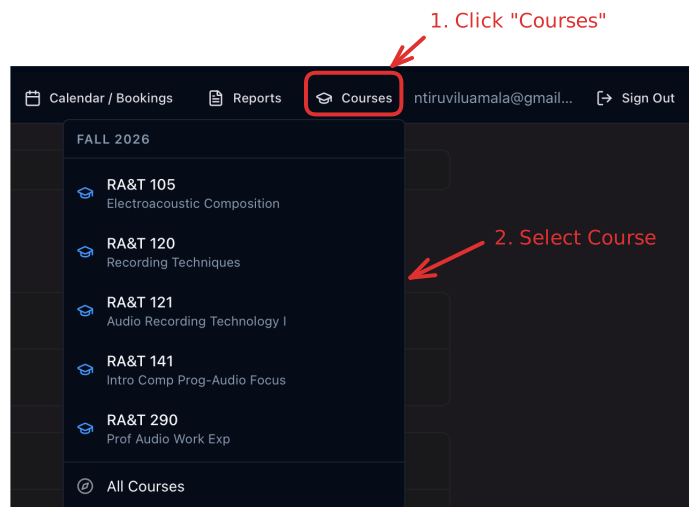
.
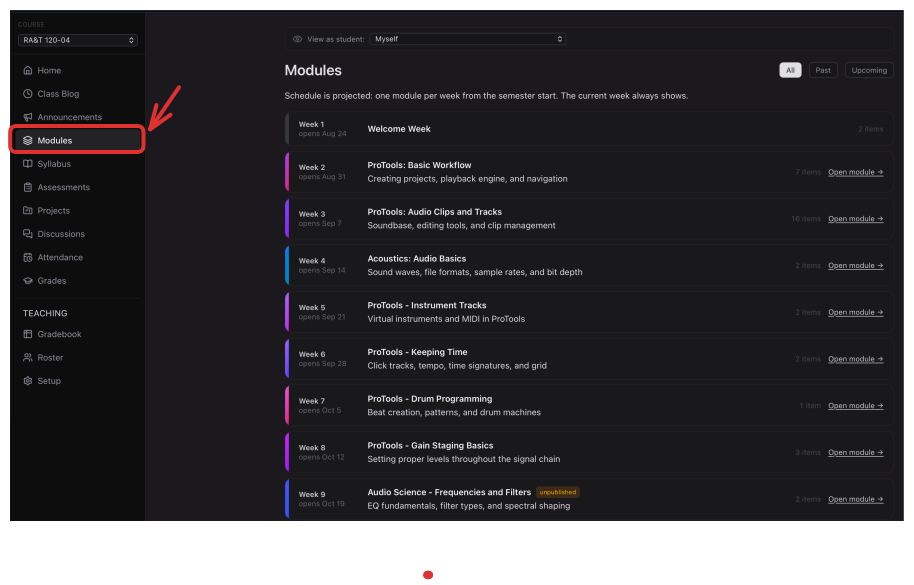
Modules are where the Course Content Lives
Upon choosing your course, you will be greeted with an interface that looks like Canvas. Navigate to different course areas via the left sidebar. Just like Canvas, Modules are where the main Course Content lives. Modules will be announced on Canvas, and more will appear as the course progresses.
Troubleshooting
The email never arrived. Wait a minute, then check spam and your Canvas-forwarded mail. Request the link again if needed; each new link makes the previous one invalid.
The link says it expired. Magic links are single-use and short-lived. Just request a new one.
It signed me in but I see no course content. Your account is not matched to the roster yet. Message me in Canvas with the exact email you used and I will fix it.
I am on my phone. Open the link in the same browser you requested it from, otherwise the sign-in can fail.
Getting help
Message me through the Canvas Inbox with the email address you tried and a screenshot of what you see. Sign-in problems are my responsibility to fix, not yours to solve; do not let one cost you a week of work.