ProTools Licensing Troubleshooting
Please ignore this page if you are taking this class online.
When you open Pro Tools on the classroom computers, you may be prompted to log in because of a glitch that disconnects from the Pro Tools license server after each restart. Although you might consider using your own iLok credentials, the solution is more complex. This guide will help you fix the issue.
Open iLok License Manager
To resolve this issue, begin by opening the iLok License Manager on your computer. Locate it by searching for "iLok License Manager."You can use Spotlightsearch to navigate directly to it, or you can look for this icon to get to it.

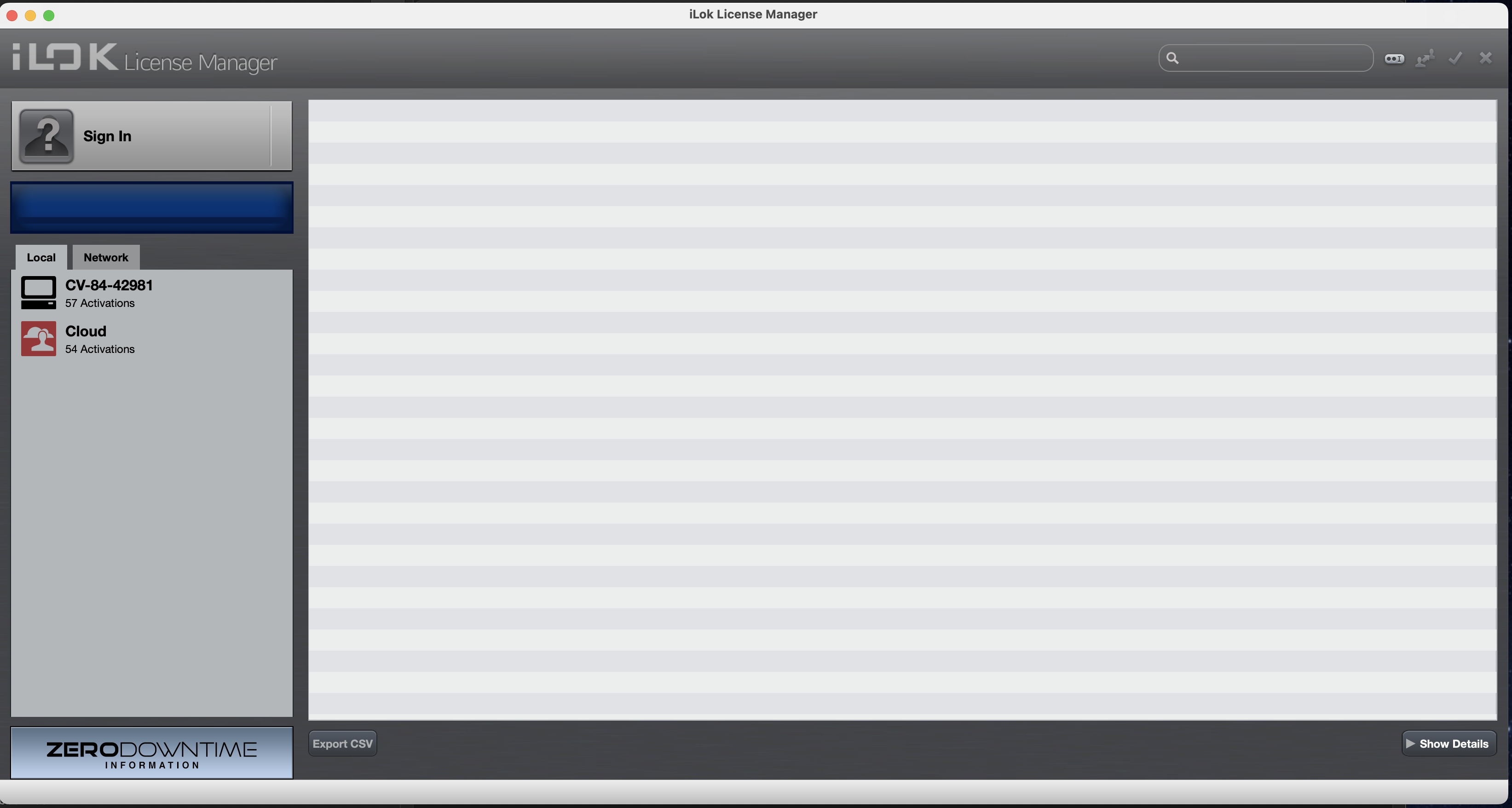
It will look like this when you open it:
Open iLok License Manager Preferences
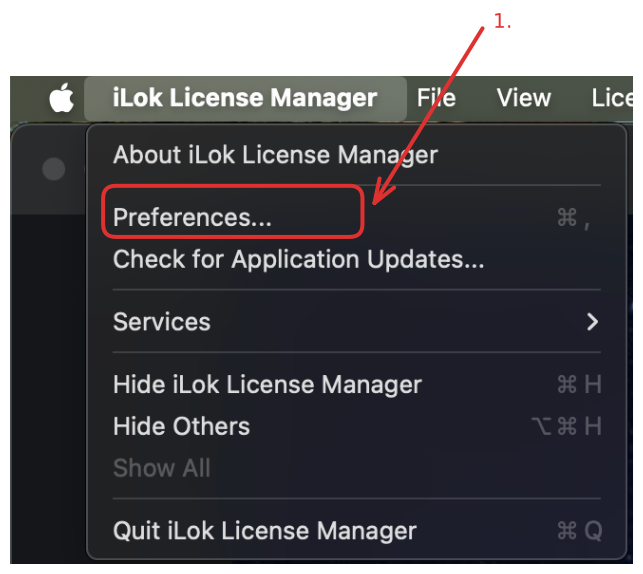
First, open the iLok License Manager and navigate to the menu bar. From there, click on the preferences option as shown in the image below.
My Connections
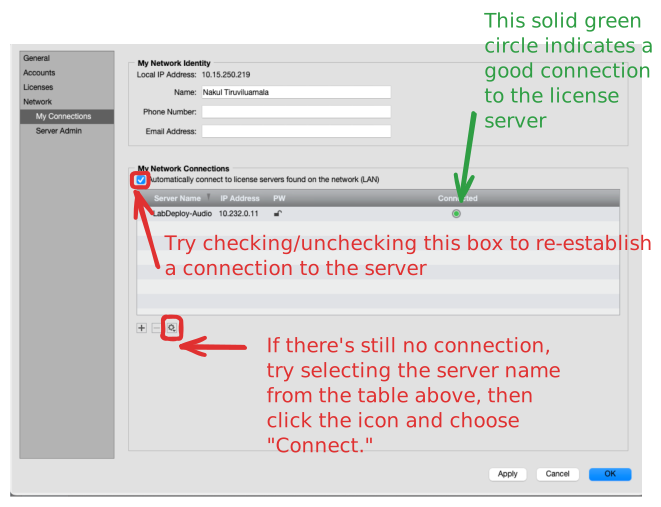
Navigate to the "My Connections" tab and refer to the diagram. A solid green circle indicates a successful connection to the server. If it appears, you can proceed to open ProTools immediately. If the solid green circle doesn't appear, adjust the settings as outlined in the diagram.
Open ProTools...Success!!!
You can now open ProTools without any issues regarding incorrect login credentials.